Your DLP Passes Every Test but Misses Real Exfiltration — Here's Why
March 23, 2026 · ~10 min read
Most DLP testing goes like this: paste a fake SSN into a text file, upload it, DLP blocks it, everyone signs off. The compliance box gets checked and the team moves on.
Then three months later, a contractor Base64-encodes a client database and exfiltrates it through a channel nobody was monitoring.
The problem isn't that you're not testing. It's that the way most teams test creates a false sense of security. Here are 6 reasons your DLP passes every test but would miss real exfiltration — and how to close each gap using ITSecTools.
1. You're testing with the same file every time
The problem
DLP engines fingerprint known files by hashing them. When you upload the same test file repeatedly, you're not testing content inspection — you're testing the hash cache. Change one byte — a space, a timestamp, a line break — and the hash is completely different. Your fingerprint-based detection fails instantly.
An attacker doesn't exfiltrate your original customer database. They export it to a fresh CSV, sort it differently, or add a column. New hash. DLP has never seen this file before.
How to test this with ITSecTools
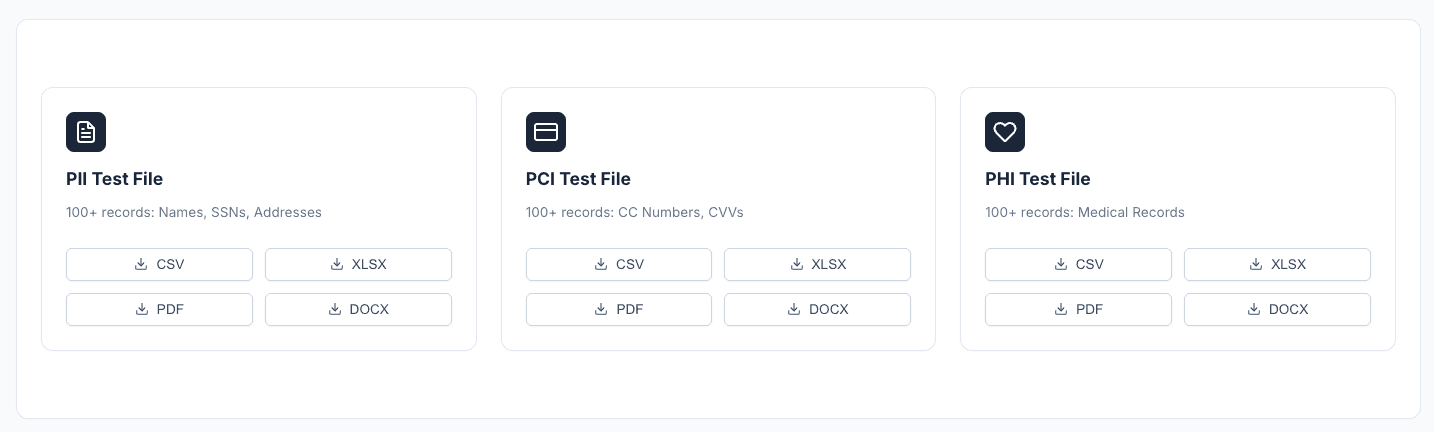
Go to DLP Validator → Download Test Files. Select a data type (PII, PCI, or PHI) and a format (CSV, XLSX, PDF, or DOCX). Every download generates 100 rows of fresh synthetic data — unique SSNs, Luhn-valid credit card numbers, realistic medical records. No two downloads produce the same file hash.
Download the file, then check if your proxy-mode DLP catches it on the way down. If it doesn't, re-upload the same file through the Data Leakage Simulator (HTTP, HTTPS, or FTP) to test if your upload DLP catches it either.
2. Your DLP can't read the file formats that matter
The problem
CSV is plaintext — any DLP can scan it. But DOCX files are ZIP archives containing XML. PDF stores text in compressed content stream objects. XLSX uses a shared string table inside a ZIP structure. Your DLP needs a dedicated parser for each format. Many engines lack them.
Microsoft Purview's endpoint DLP supported only ~40 file types until mid-2025. Symantec DLP has a 150MB agent inspection limit. Text inside shapes, text boxes, or grouped elements in DOCX files is often skipped entirely.
How to test this with ITSecTools
In DLP Validator → Download Test Files, generate the same data type (e.g., PCI) in all four formats: CSV, XLSX, DOCX, and PDF. Download each, then upload each through the Data Leakage Simulator over HTTPS.
If your DLP blocks the CSV but allows the DOCX or PDF through, your content inspection engine can't parse those formats — and that's exactly what an attacker would exploit.
3. Base64 encoding defeats pattern matching instantly
The problem
Your DLP has regex rules looking for SSN patterns (XXX-XX-XXXX) and credit card numbers. Base64-encode that data and the pattern vanishes completely. The transformed string looks nothing like an SSN.
In documented penetration tests, testers have bypassed newly deployed DLP solutions using nothing more than PowerShell with Base64 encoding. No sophisticated tooling. No zero-days. Just encoding.
How to test this with ITSecTools
Go to DLP Validator → Evasive Payload Download → Base64 Encoder. Paste sensitive text (SSNs, credit card numbers, patient records) and encode it. Then attempt to exfiltrate the encoded payload via the HTTP/S POST Simulation section.
You can also embed Base64 data inside .eml, .html, or .docx files using the generator, then upload those files through the Data Leakage Simulator. If your DLP allows the encoded version through while blocking the plaintext version, you have an evasion gap.
4. Encrypted archives are probably passing through uninspected
The problem
When your DLP encounters an AES-256 encrypted ZIP, it has two choices: fail-close (block it because it can't inspect the contents) or fail-open (allow it through uninspected). Most deployments default to fail-open because blocking all encrypted files creates immediate business pushback — your sales team sends password-protected proposals daily.
Forcepoint DLP has an explicit fail-open/fail-close toggle. Microsoft Purview endpoint DLP does not decrypt protected files at all. If you haven't explicitly configured this, you probably have a wide-open exfiltration path.
How to test this with ITSecTools
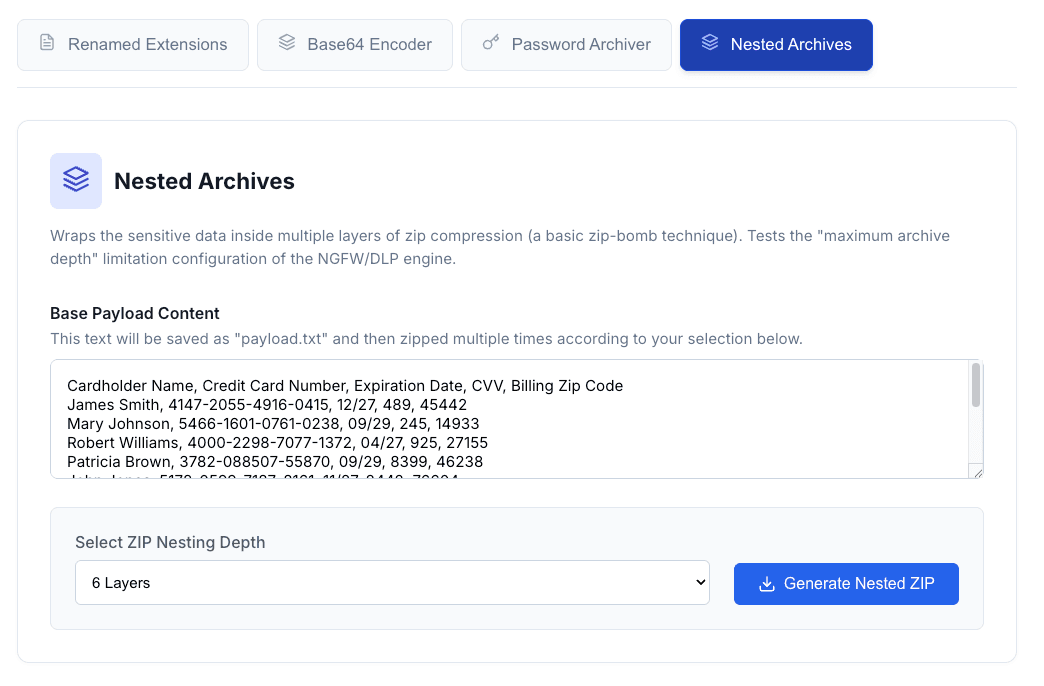
Go to DLP Validator → Evasive Payload Download → Password-Protected Archives. Generate an AES-encrypted ZIP containing sensitive data. Upload it through the Data Leakage Simulator over HTTPS.
If the upload succeeds without being blocked or flagged, your DLP is fail-open for encrypted archives. Also test with Nested Archives (ZIP inside ZIP) — most DLP engines have a recursion depth limit of 2-3 levels. Put sensitive data at level 4 and see if it gets through.
5. Your DLP trusts file extensions instead of inspecting headers
The problem
Rename a .docx to .jpg. Does your DLP still inspect it? That depends on whether it checks magic bytes (the first few bytes that identify the true format) or trusts the file extension.
Microsoft Purview only began rolling out true file type detection in Exchange Online DLP as a preview feature in mid-2025. Before that, a simple rename bypassed the policy entirely — on one of the most widely deployed enterprise DLP solutions.
How to test this with ITSecTools
Go to DLP Validator → Evasive Payload Download → Renamed File Extensions. This generates a valid document (containing sensitive data) with a spoofed extension — for example, a DOCX file saved as .jpg. Upload it through the Data Leakage Simulator.
If your DLP allows it through, your file type detection is extension-based and trivially bypassable. A proper DLP engine should inspect magic bytes (the file starts with PK for ZIP/DOCX, %PDF for PDF) regardless of the extension.
6. You only tested one protocol
The problem
Your DLP might inspect HTTPS uploads perfectly. But data doesn't only leave via HTTPS. HTTP (port 80) is unencrypted and may not be inspected. FTP (port 21) is still alive in healthcare, manufacturing, and finance. Raw POST requests — inline data in the HTTP body, not file uploads — slip past DLP engines that only look for multipart form data.
If you only tested HTTPS uploads, you tested maybe 30-40% of your exfiltration surface.
How to test this with ITSecTools
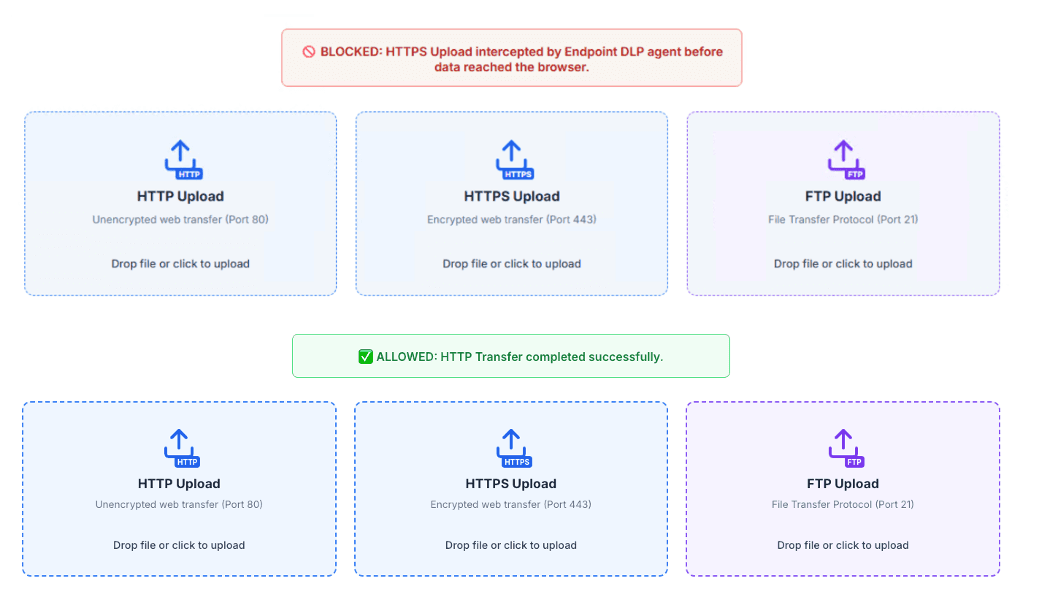
The DLP Validator → Data Leakage Simulator gives you three upload channels side by side: HTTP (port 80), HTTPS (port 443), and FTP (port 21). Upload the same sensitive file through all three. Below that, the HTTP/S POST Simulation lets you send raw text data as a POST body.
If your DLP blocks the HTTPS upload but allows the HTTP, FTP, or text POST — you've found a protocol gap that an attacker could exploit.
The real test: a full validation matrix
A proper DLP validation isn't a single test — it's a matrix. Every combination of file format, evasion technique, and protocol should be tested with freshly generated data:
| CSV | XLSX | DOCX | Base64 | Encrypted ZIP | Renamed Ext | ||
|---|---|---|---|---|---|---|---|
| HTTP | ? | ? | ? | ? | ? | ? | ? |
| HTTPS | ? | ? | ? | ? | ? | ? | ? |
| FTP | ? | ? | ? | ? | ? | ? | ? |
| Text POST | ? | ? | ? | ? | ? | ? | ? |
Every ? in that matrix is a question your DLP should be able to answer. ITSecTools lets you fill in every cell — with fresh data, across all protocols and evasion techniques — from a single browser tab.
Quick checklist: run these 7 tests in 10 minutes
- DLP Validator → Download Test Files → download PCI as DOCX and PDF → check if your proxy DLP blocks the download
- Re-upload those files via HTTPS, HTTP, and FTP in the Data Leakage Simulator
- Evasive Payload Download → Base64 Encoder → encode an SSN → POST it via HTTP/S POST Simulation
- Evasive Payload Download → Password-Protected Archive → upload via HTTPS
- Evasive Payload Download → Renamed Extensions → upload the .jpg-disguised .docx
- Check your DLP console → verify which layer caught each test (endpoint vs. network)
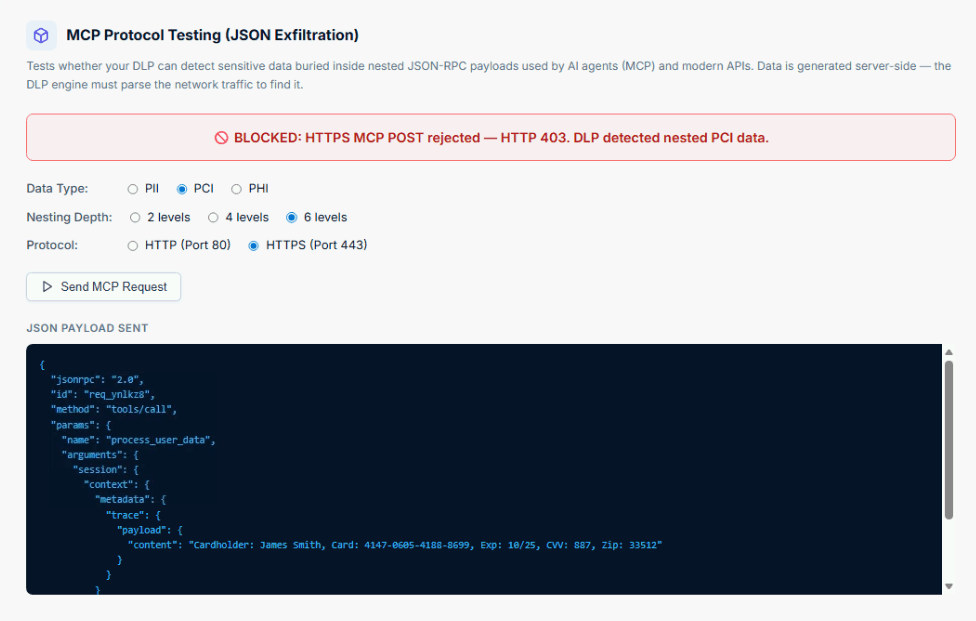
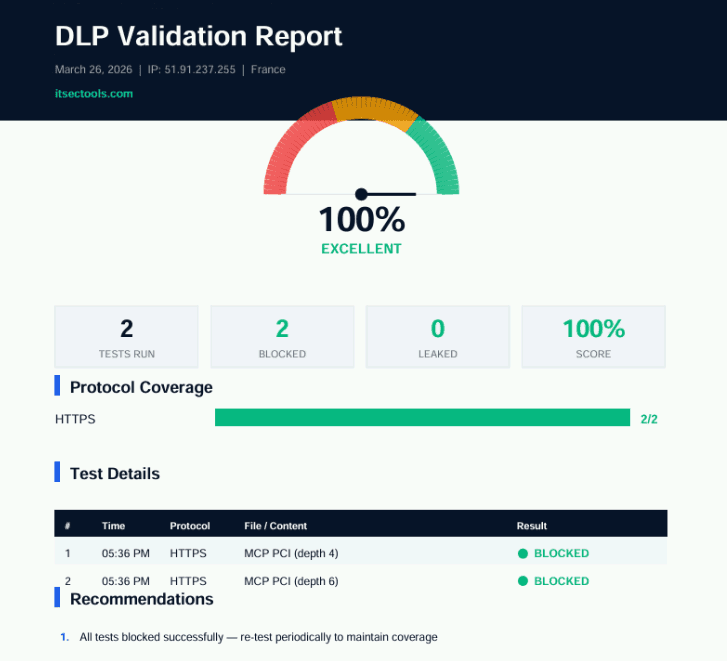
- NEW: DLP Validator → Advanced DLP Tests → Nested JSON Exfiltration → select PCI, depth 6, HTTPS → send the test and see if your DLP catches credit card data buried 6 levels deep in JSON
If your DLP passes all seven — including the nested JSON test — you have a solid deployment. If it doesn't, you know exactly where the gaps are — before an attacker finds them.
Bonus: the blind spot no one is testing — Nested JSON exfiltration
AI agents, REST APIs, and GraphQL mutations all transmit data inside deeply nested JSON structures. What happens when sensitive data ends up buried 4-6 levels deep inside those payloads?
Most DLP engines scan flat text and file attachments. They don't parse nested JSON. An attacker — or a misconfigured AI agent — can exfiltrate PII, PCI, or PHI data buried 4-6 levels deep inside a JSON-RPC payload, and your DLP won't see it.
ITSecTools is the only free tool that tests this. The Advanced DLP Teststab generates fresh sensitive data server-side, wraps it in a deeply nested JSON structure at your chosen depth (2, 4, or 6 levels), and POSTs it through your network. If your DLP doesn't block it — you've found a gap that no other testing tool would have caught.
Generate a report your CISO will actually read
Running tests is half the job. The other half is proving your findings to management. After running any combination of tests, click Generate Report to download a branded PDF with a score gauge, protocol coverage breakdown, detailed test results, identified gaps, and actionable recommendations.
No signup, no account, no data leaves your browser. The report generates instantly, client-side.
Stop testing your DLP with the same file you used last quarter. Run the full matrix.
Open DLP Validator →